
FME Flow Authoring: Import the Starting Project
If you are taking FME Flow Authoring on demand and using your own FME Flow, you will need to import the starting project to your FME Flow. The project contains materials that you will use as you complete the training on your own FME Flow.
If you are taking a Safe Software-hosted training course, either in live training or using one of our Strigo on-demand labs, you do not need to import this project. We have already imported the materials to the FME Flow on the Strigo lab for you.
The starting project materials are built for the FME version used in FME Flow Authoring. You will see the version at the top of each course section. You can import the project into an FME Flow that is the same version or a newer version. If you use an older version, you are likely to encounter errors.
Instructions
1. Download the starting project and encryption key.
2. Apply the encryption key to your FME Flow.
On FME Flow, go to System Configuration > Security > System encryption. Select Upload Key and add the fme_flow_authoring.jceks file.
This must be done by an fmesuperuser who has permission to System Configuration > Security > System Encryption. If you don't have the necessary permissions to access System Encryption, ask your FME Flow administrator to import the encryption key. For more information, see our documentation on System Encryption.
3. Navigate to Projects. Click Import.
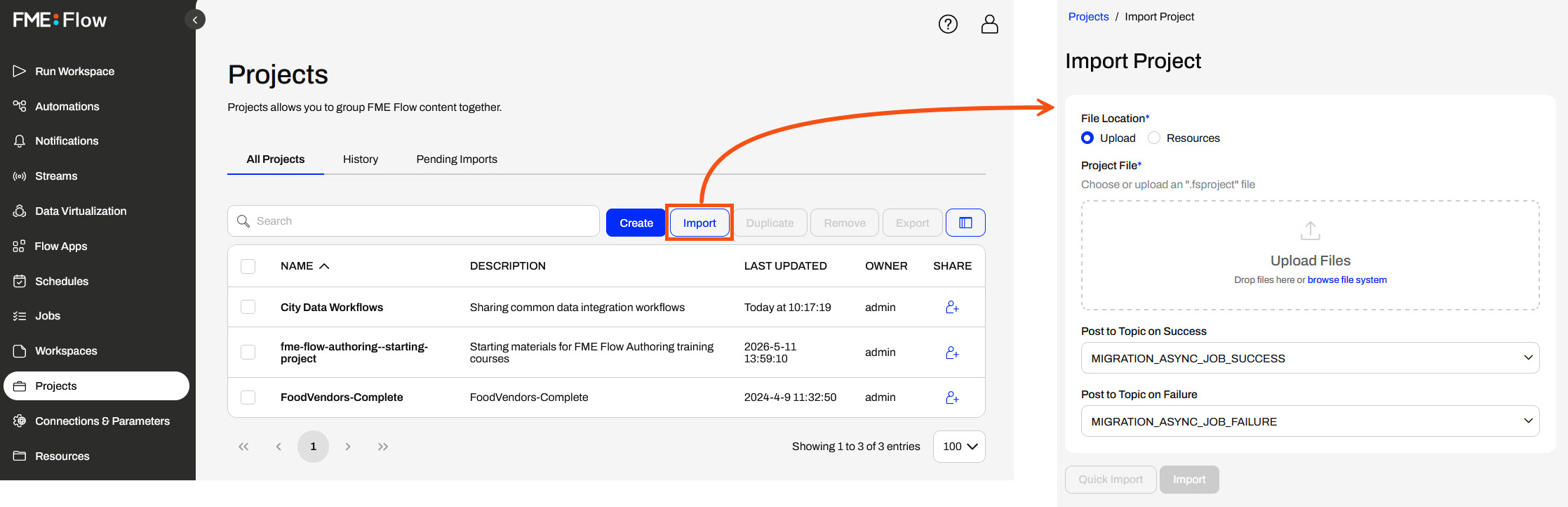
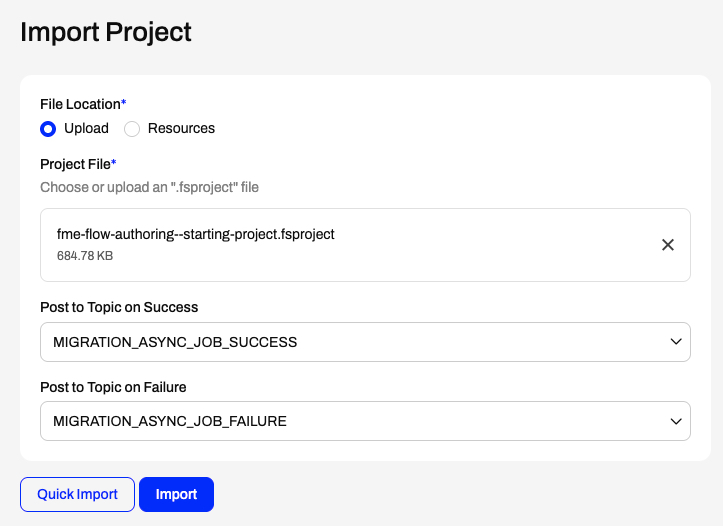
4. Upload fme-flow-authoring--starting-project.fsproject as the Project File and then click Import.
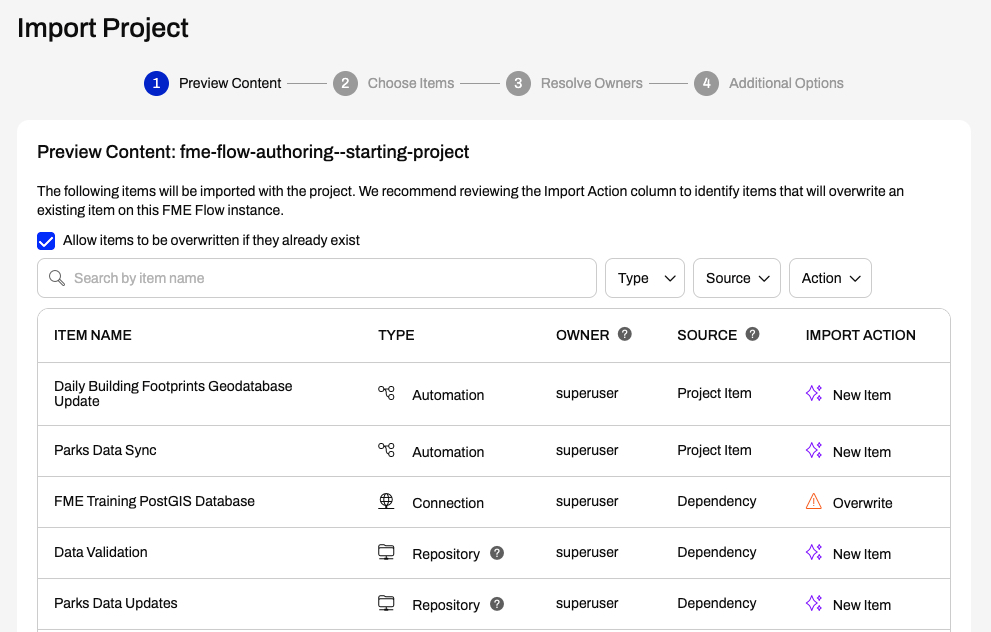
5. The first step is Preview Content, where you may choose not to overwrite existing items. If all your items are New Items, you don't need to worry about overwriting existing items. If some items already exist, you should overwrite them to ensure you have the latest version. Click Continue.
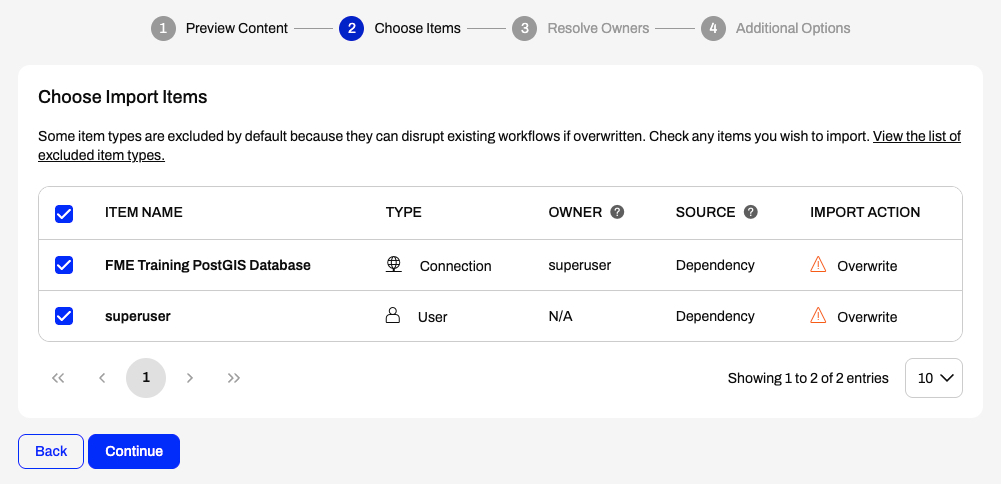
6. The next step is to select connections and tokens to import. By default, FME Flow does not select these for import as they are considered sensitive data. Select both the FME Training PostGIS Database Connection and the superuser user to import. If these aren't imported, the workflows will not run successfully. Click Continue.
7. The Resolve Owners step only allows you to reassign the project contents to a different user if the admin user doesn't exist on your FME Flow. Click Continue, then click Import Project in the Additional Options step. The project will import and display its import status from the same page.
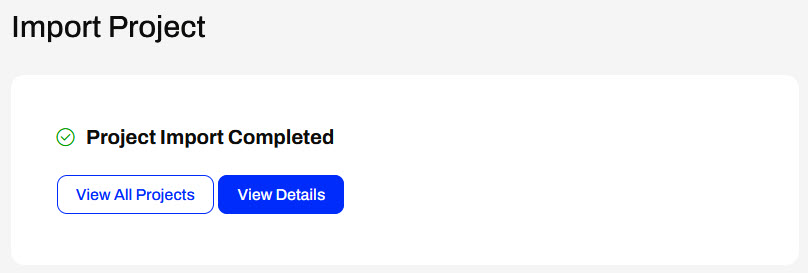
If the project import failed, ensure you uploaded the encryption key, then repeat the process. If it still fails, contact us at train@safe.com.
