
FME 2025.2 Update Notes
Our exciting new update is full of new features.
Here's a list of changes to help you when taking our training.
FME 2025.2 continues our momentum of innovation with a release focused on performance, compatibility, and developer experience. With new Delta Lake and Microsoft Fabric readers, system browser-based authentication, an IFC writer, official OS support for macOS 26 (Tahoe), and more, FME 2025.2 brings new power and reliability to every part of the platform, enabling teams to automate, integrate, and innovate with their data with greater confidence.
Here is a list of relevant changes that you should be aware of if you are taking our training using FME 2025.1 or 2025.2.
We recommend taking our training courses using the version of FME in the course title. If you prefer to use a newer version of FME, you can refer to this page if the exercise instructions don't match the new interface.
This page highlights 2025.2 features relevant to our training courses. For more information about the release, view the full feature highlights post.
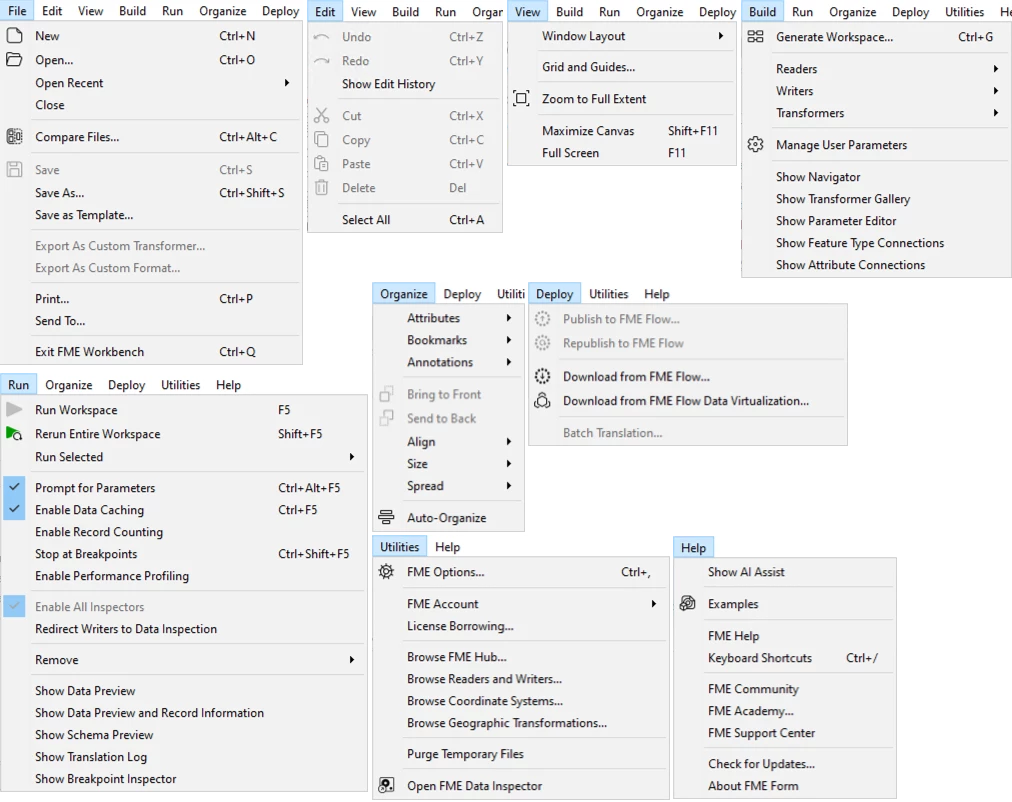
As of FME 2025.1, top-level menus across FME Form applications have been simplified, featuring clearer and more consistent language. This redesign helps users, especially new ones, navigate the interface more intuitively and quickly locate what they need.
Want to learn more about this feature? Watch our short demo video here.
Here are some of the most relevant changes:
- Publish to FME Flow now lives under Deploy
- FME Options now lives under Utilities in both Windows and macOS.
- Readers and Writers now live under Build
If the exercise instructions don't match the interface, please try looking under the new top-level menu options.
We've updated several terms within the FME platform to better fit common usage.
Some training content might instruct you to filter by Readers/Writers in the Quick Add menu. Simply select Source or Destination, as applicable.
Some training content might use the older terms.
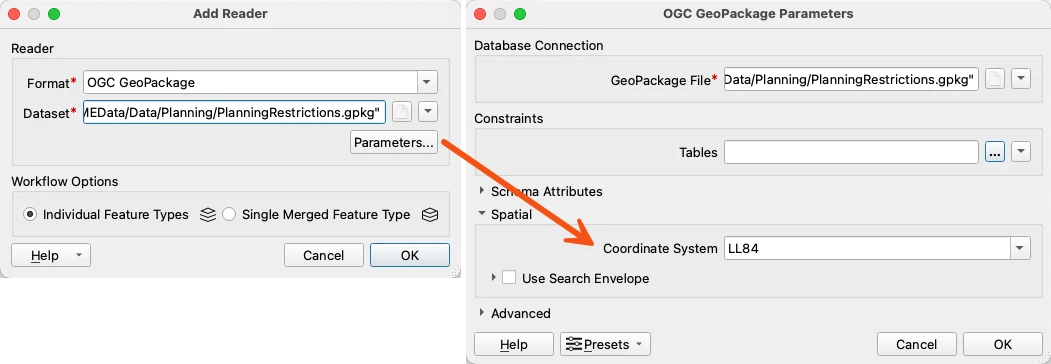
The Coordinate System parameter for datasets is now only displayed for spatial integrations and has been relocated to the Parameters dialog, reducing clutter and enhancing consistency across workflows.
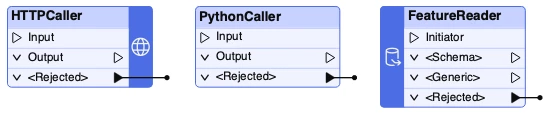
Transformers can now run without a connected input feature, eliminating the need for adding placeholder features from a Creator. This reduces clutter in workspace and transformer parameters. Existing workspaces remain unchanged, and transformers will still process the features you connect as before.
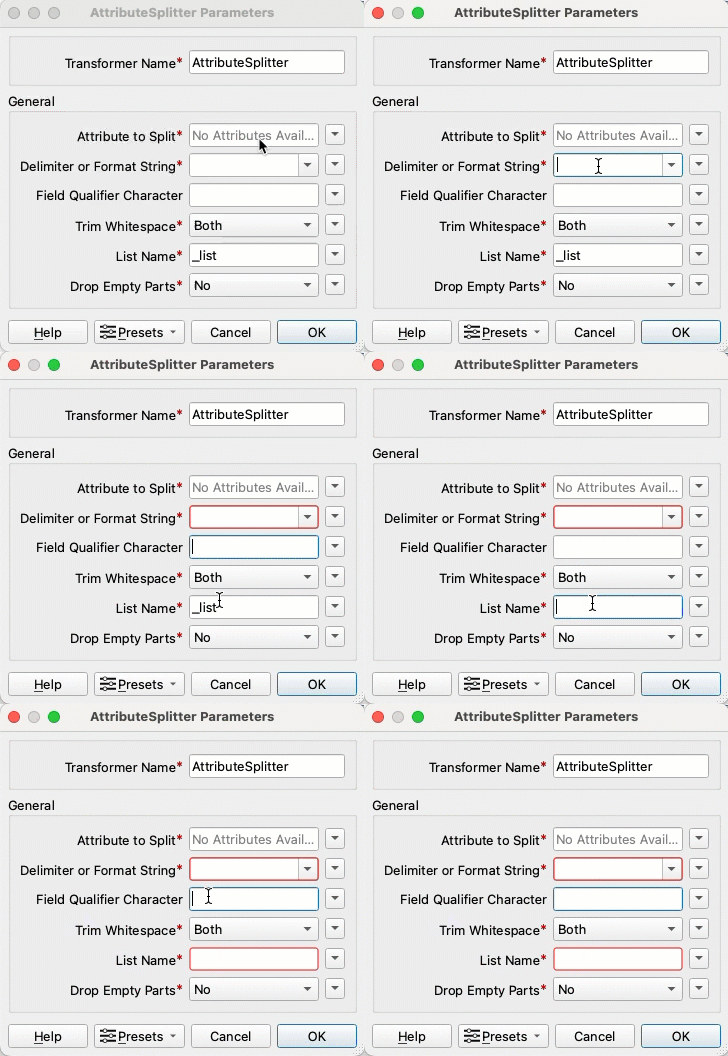
The FME Form UI now adheres to industry best practices by marking required parameters with a red asterisk and highlighting invalid fields with a red outline only after edits have been made. The former red-filled fields did not always meet accessibility standards; the new approach provides clearer, calmer guidance instead.
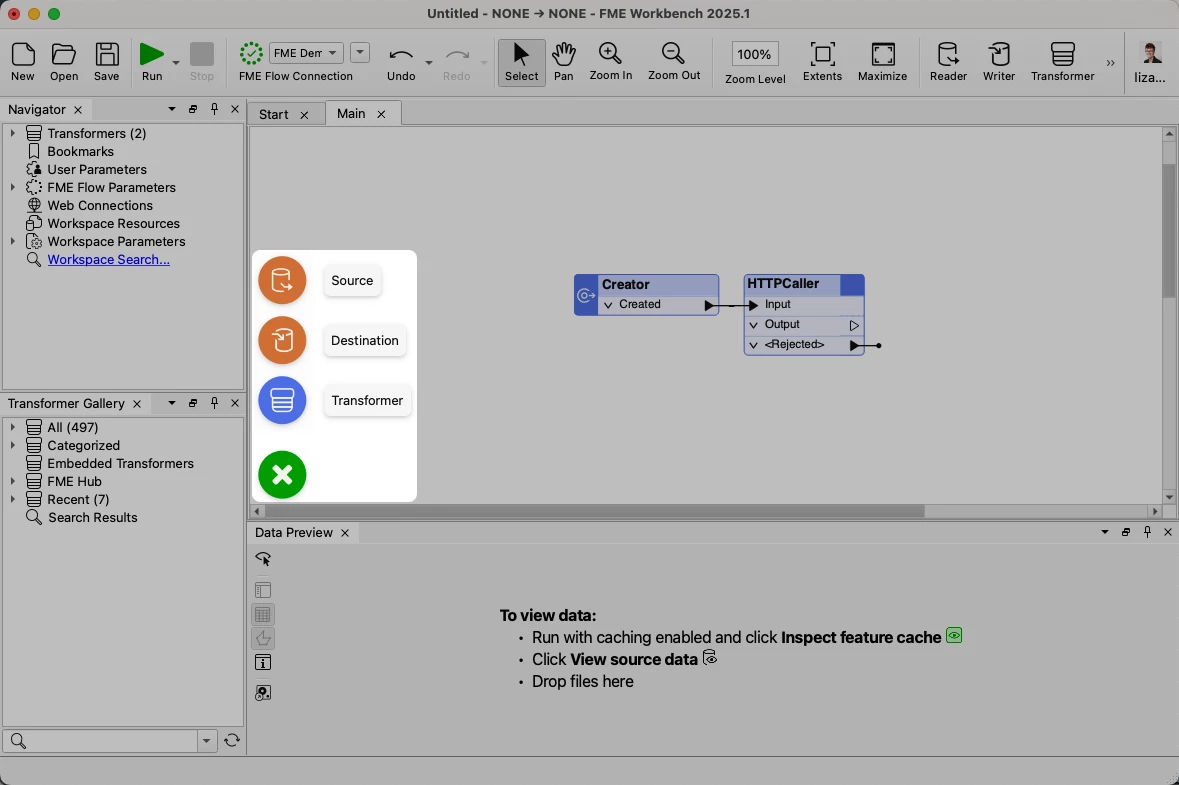
As of FME 2025.1, a new Add button is now available directly on the workspace canvas. This allows users to easily insert a Source (to bring data in), a Destination (to send data out), or a Transformer, thereby speeding up the initial workflow construction.
As of FME 2025.1, you can now view your data with geometry directly on the Canvas. Look out for the <spatial> attribute on your feature types or transformers, which indicates geometry is present on your features.
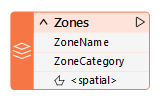
You can also view spatial definition tables on the writer feature type. Check out this video for more information:

Note: your FME Academy name and email is set via Safe Account. To change them, please access your Safe Account. Changing your name there will automatically update your name on any Skilljar-issued certificates if you log out and log back in again.
